DC 2018 All Photos Download
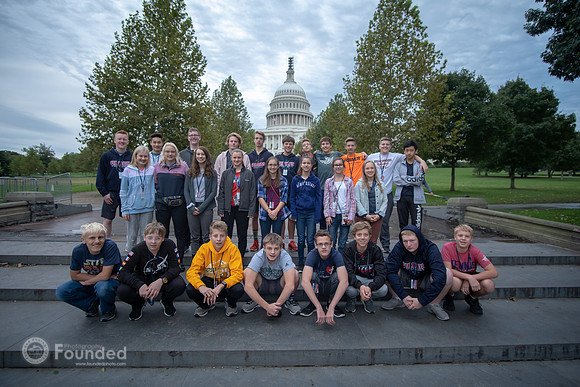

PCS students, families and chaperones are welcome to upload and download pictures from our recent DC trip.
Google Drive folder with everyone's DC Trip 2018 photos
To upload photos:
Click the link above to go to the Google Drive folder. Create a folder to hold all your photos by right-clicking anywhere in the blank space in the center of the screen and select New Folder. Give the folder an appropriate name for yourself and click Create. Next, double-click on the folder you just created. From your file manager (Windows Explorer or Mac Finder), navigate to your pictures you'd like to upload. Select them all by pressing Ctrl-a to select all the photos (command-a on a Mac), then drag and drop them onto the blank Google Drive folder you created. That's it!
To download photos:
You should find a folder from each parent and/or student who has uploaded photos. Go into each folder and pick photos you'd like to have. To select individual pictures, Ctrl-click (command-click on a Mac), or if you want all of them in that folder, press Ctrl-a to select all the photos (command-a on a Mac). To download the photos you've now selected, right-click on any of the selected photos and choose ⬇︎ Download. Warning: if you right-click on any photo that is not selected, you'll be downloading just that one picture, and you'll have to reselect all the ones you had selected before! :-(
If you have problems, feel free to contact me at davidstone111 (at) gmail.com or seven zero one - 306 - two5twotwo (sorry for all the cryptic typing - I'm trying to avoid spam bots!)
Thanks for the opportunity to serve the Park family in this way!
For Him,
David Stone
PS: If you just want to view all the photos I took on the trip nice and big, visit the gallery here.
Download the app: 
